Utilizando no seu assistente local
Local connection
The local connection is straightforward: the configured assistant or client sends your parametrized token with every call, and the server simply reads that token. There is no session or negotiation — all the server needs is a valid token. That is why the setup comes down to three things:
- A token;
- A configuration file;
- An environment variable that holds the token.
Prerequisites
- An assistant or client compatible with the MCP protocol installed.
- A valid BTG Id token (see step 1 below).
1. Obtain a BTG Id token
Authentication is handled by BTG Id. The token must be obtained via the Authorization Code Flow — it is the only flow that issues a token with delegated end-user consent, which the MCP server requires to operate on behalf of a company. Flows without user consent (such as Client Credentials) are not accepted.
Complete the Authorization Code flow and save the resulting access token — that is what Claude Code will send.
The token identifies the company you will operate (based on the consent granted during login).
The token grants access to the banking operations it authorizes. Do not paste it into versioned files, do not share it, and do not paste it into the assistant chat. In the next step it must go into an environment variable, never inside the configuration file.
2. Configure the connection file
Configure ~/your-repository/.mcp.json
{
"mcpServers": {
  "btg-empresas-mcp": {
    "type": "http",
    "url": "https://mcp.empresas.btgpactual.com/mcp",
    "headers": {
      "Authorization": "Bearer ${BTG_MCP_TOKEN}"
    }
  }
}
}
3. Export the token
Export the token before starting your tool, using the same variable name you referenced in the configuration file:
export BTG_MCP_TOKEN="<your-token>"
4. Start the tool and connect
In the directory that contains your file, start your tool:
claude
The tool reads the configuration file, resolves the environment variable, and connects to the server. The BTG Empresas tools become available in the session.

5. Validate with a query
Ask, in natural language, for a read operation. It requires no confirmation and proves the connection is up:
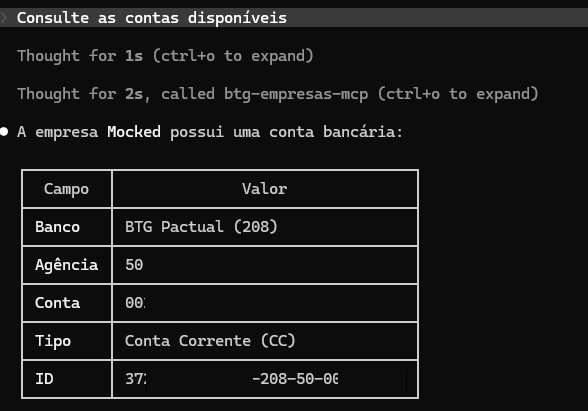
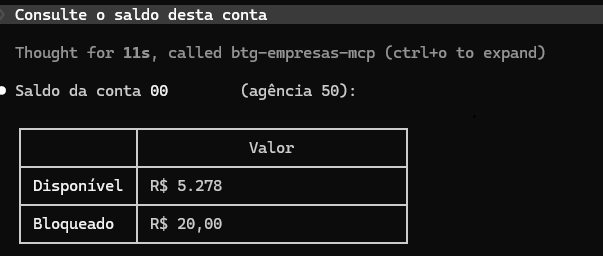
The assistant selects the appropriate query, executes it against the BTG Empresas server, and returns the result.
Write operations require confirmation
Operations that move money, such as a Pix transfer, a payment, or issuing a bank slip, are never executed without confirmation. The assistant presents an operation summary (company, amount, payee, and date, with the document number masked) and only proceeds after your explicit approval in the conversation.
Payment issuance follows the standard flow that requires confirmation in the BTG Empresas mobile app or Internet Banking.
See Security and best practices to understand why this step exists and why it should not be skipped.
When the token expires
The BTG Id token has a short lifespan. When it expires, calls stop being authorized. Generate a new token, update the environment variable, and restart Claude Code so it re-reads the value:
export BTG_MCP_TOKEN="<new-token>"